How to upgrade Hi5a controller version
1. Prior knowledge
- You must prepare a USB memory containing the files required for version upgrade.
- Deployment files must be named in a defined format.
   ex) Hi5aV402600.zip
       controller model(Hi5a) + V + major version(40) + minor version(26) + build revision(00)
- All Hi5a controllers have a major version of "40" no see.
- The minor version (26) is the actual significant version number.
- The build revision is "00" for all official versions and all other versions are trial versions.
- The Hi5a version is provided in ZIP format and is unpacked and installed by an automatic installer. (There is no need to intentionally unzip it.)
1.1. Precautions when downloading version
- MV40 for TP530 users. If you download the version from 24 or higher to MV40.23 or lower, you cannot change the main version.
- TP520/511 users are irrelevant.
- After downloading the main version using TP520, you must reconnect and use TP530. At this time, when changing the version, only TP is performed.
2. Task sequence
2.1. Create a version upgrade folder with the name “Hi5a_rel” at the top path of the USB memory (based on TP511 \USB).
\USB\Hi5a_rel
2.2. Copy the Hi5a controller S/W distribution file to the USB version upgrade folder.
    release file : for case : Hi5aV402600.zip
    EX) \USB\Hi5a_rel\Hi5aV402600.zip
2.3. Connect the USB where the distribution file is copied to the T/P.
2.4. Confirm that the T/P screen is switched as shown below.
2.5. Press the Version-Up button.
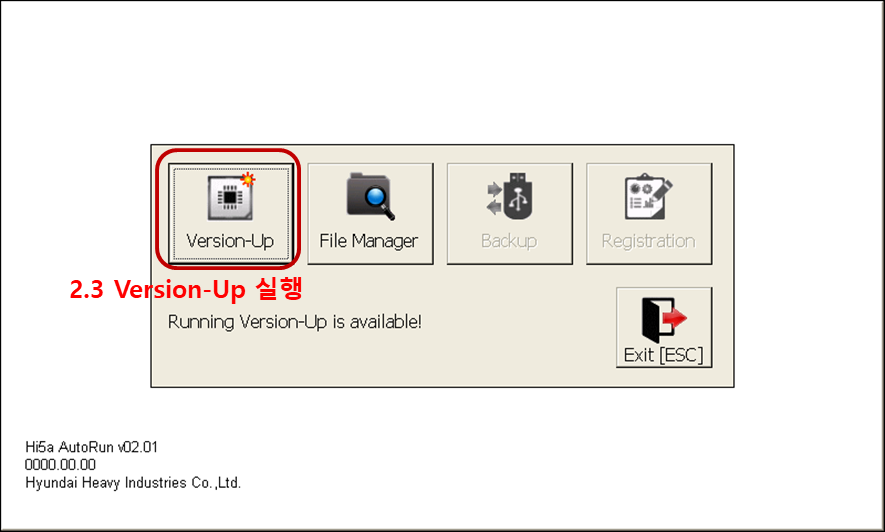
caution
- Work with motor_off
- Working in manual mode
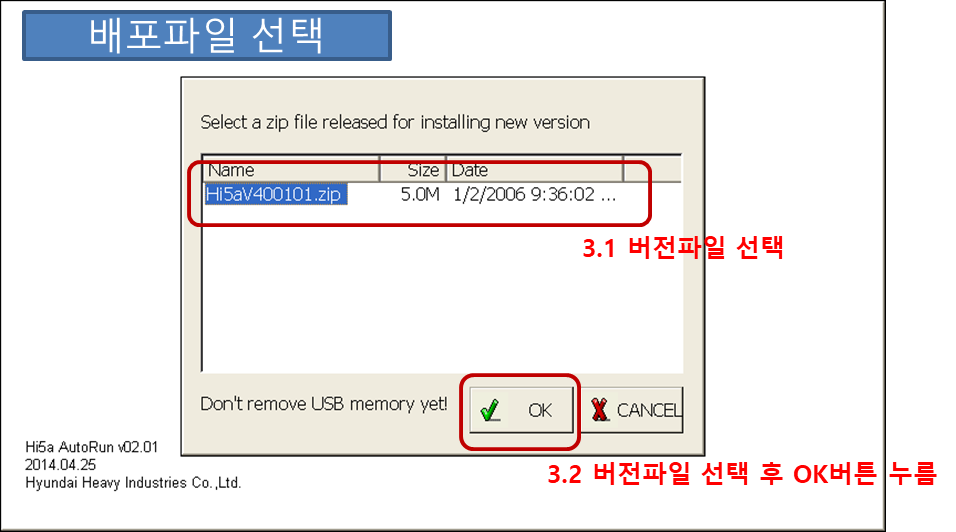
2.6. After confirming that the screen changes as shown below, select the distribution file copied to the USB.
2.7. Confirm that the distribution file is selected and press the “OK” button.
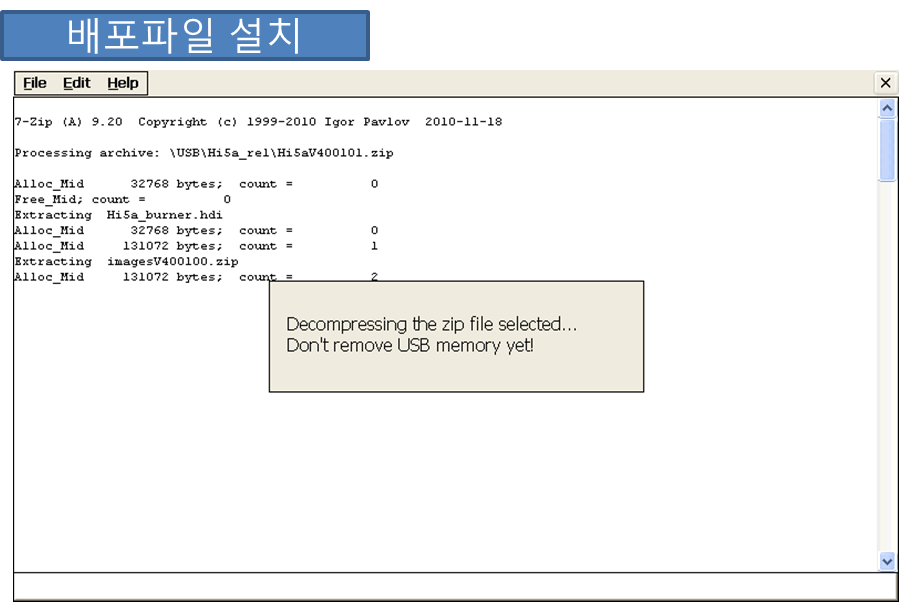
2.8. The process of installing the distribution file on the T/P proceeds automatically. (Do not remove the attached USB while the above process is in progress)
2.9. Select the version compressed file that integrates the version upgrade files for each device.
Select the 2.10 version compressed file and press the ‘Start version upgrade’ button.
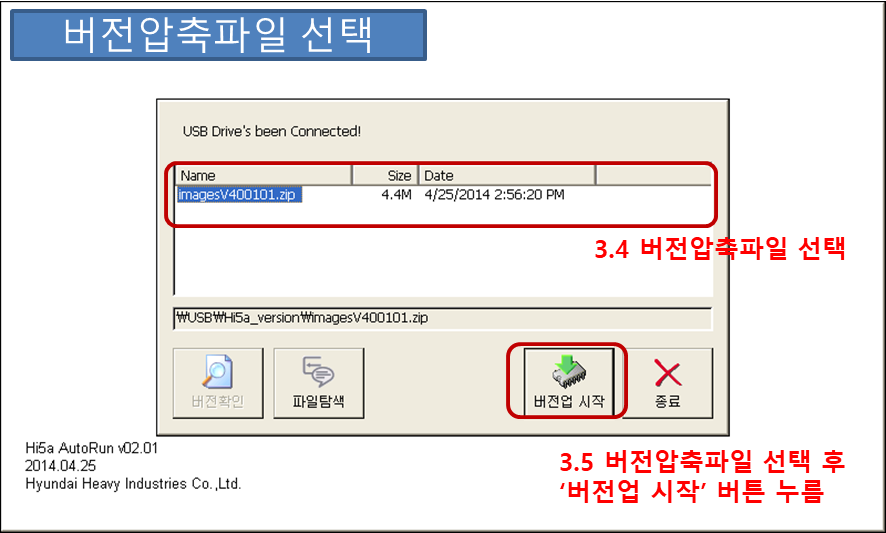
2.11 Automatically switches to a screen where you can check system information.
2.12 Compare version information for each device.
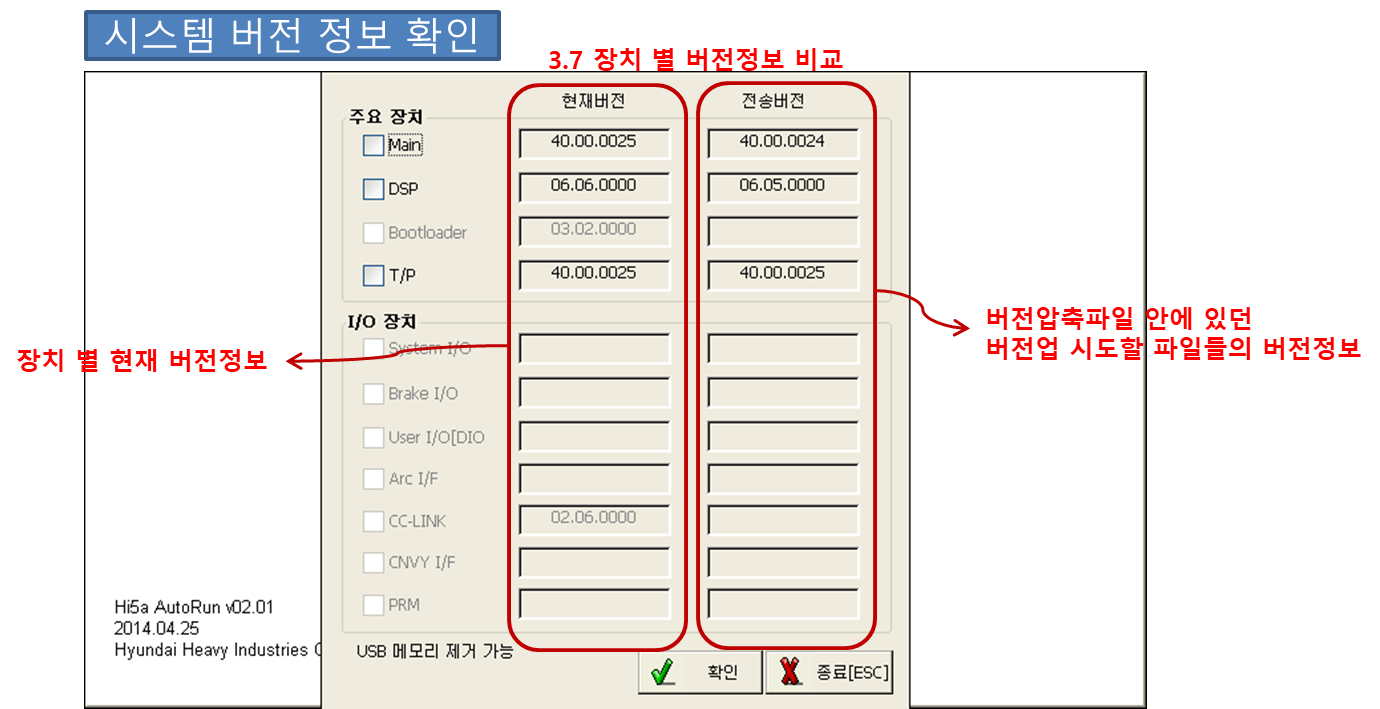
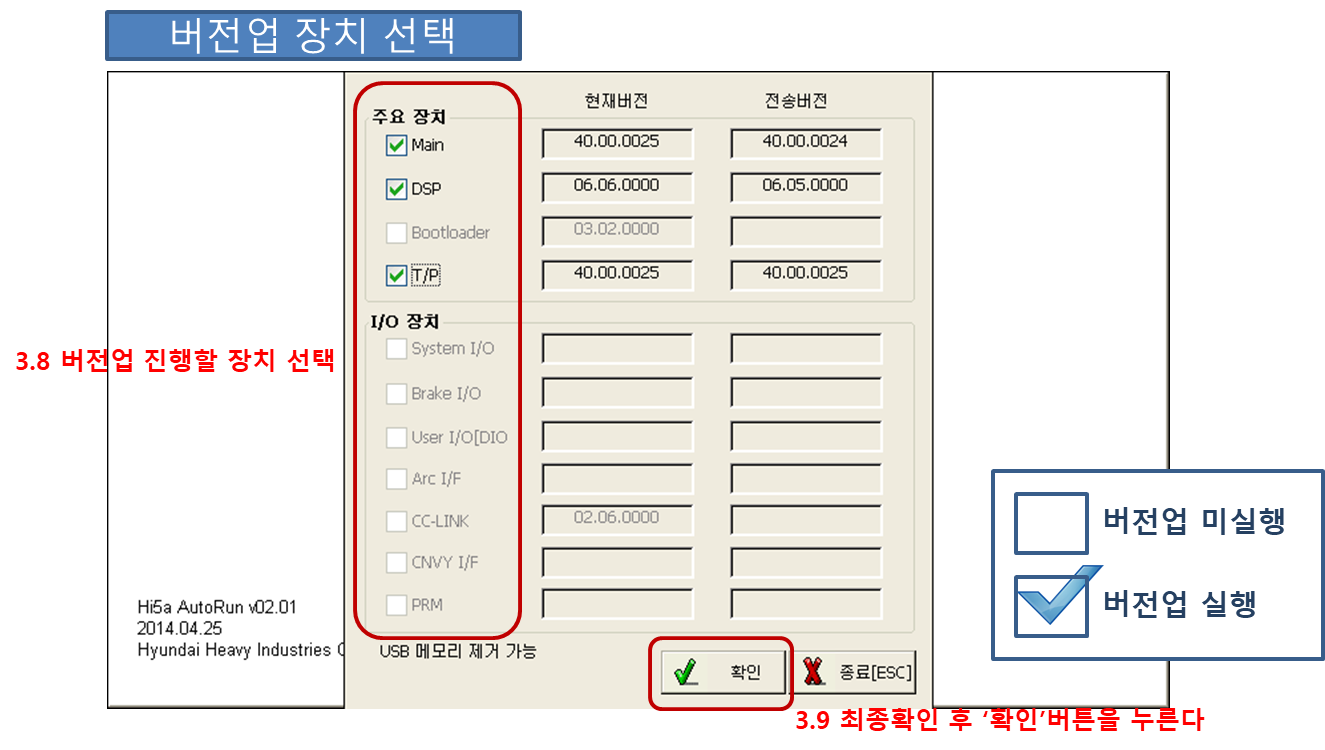
2.13 Click the checkbox of the device for which you want to upgrade to version 2.13 and change it to the checked state.
(You can upgrade only the parts you want.)
2.14 After final confirmation, press the ‘Confirm’ button.
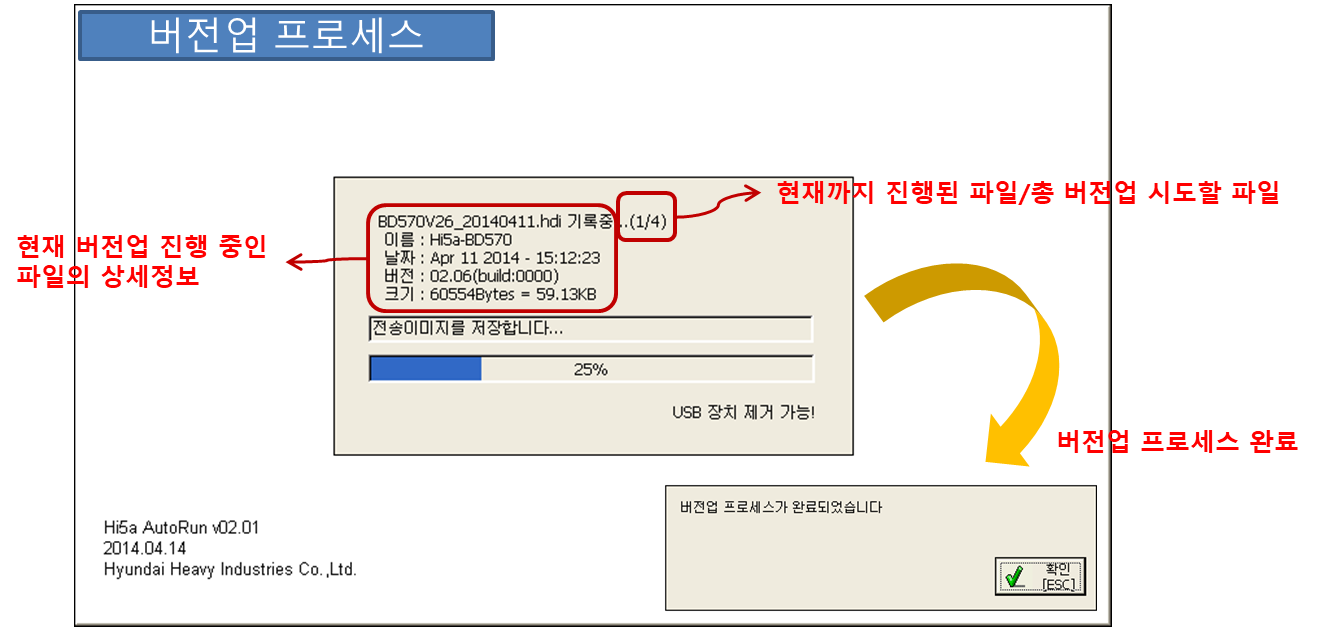
2.15. The version upgrade for the selected device (single or multiple devices) is automatically performed.
3. An error occurred during installation
3.1. Distribution file installation failed
3.1.1. Cause
- If the USB is arbitrarily removed from the T/P during installation of distribution files
- When the distribution file itself is invalid (file is broken)
3.1.2. Solution
- Reinstall the USB and try upgrading again.
- If the file is corrupted, it must be replaced with a normal distribution file. (Please re-request the distribution file.)

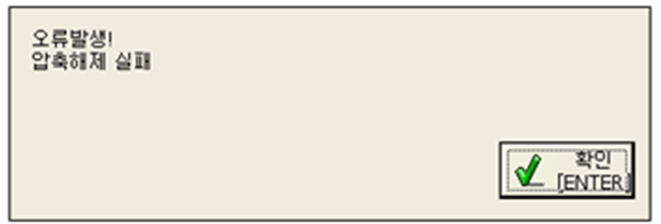
3.2. Decompression failed
3.2.1. Cause
- Occurs when the temporary storage space inside the T/P is insufficient.
- Occurs when the distribution file or version compressed file is broken.
3.2.2. Solution
- If the cause is insufficient temporary storage space, restart the T/P device.
- If the file is damaged, replace it with a normal distribution file and apply.
3.3. Communication error
3.3.1. Cause
- Poor Ethernet cable connection between main board and T/P
- Main S/W is unable to communicate
3.3.2. Solution
- Check the Ethernet cable wiring condition and retry.
- Restart the Hi5a controller. (OFF -> ON)
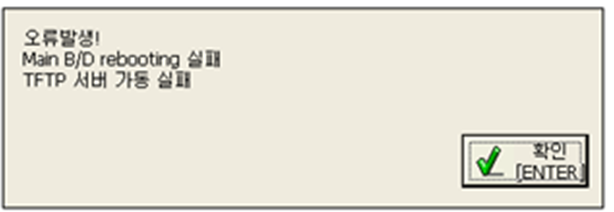
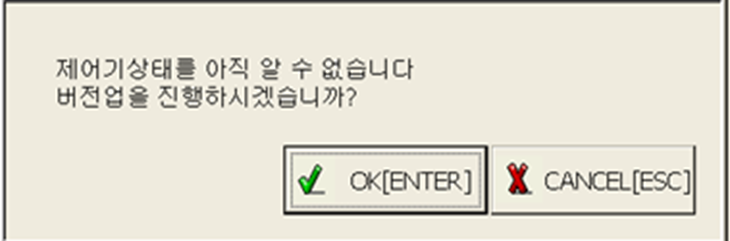
3.4. Controller status not received
3.4.1. Cause
- Communication error
- Main S/W malfunction
3.4.2. Solution
- In case of communication error, check error measures.
- In case of main S/W malfunction, ignore it and proceed. (Press OK button) In case of main S/W malfunction, 7-segment of Main B/D: E52, dbg.